AI image layer splitting
Image to Layers
Split any image into editable layers
Image to layers from one flat PNG or JPEG. LayersApart separates the subjects, objects, and text into transparent layers, rebuilds the background behind them, and gives you a layered PSD.
- Max layers
- 16 + background
- Export
- PNG · ZIP · PSD
- Time
- About 30 s – 2 min

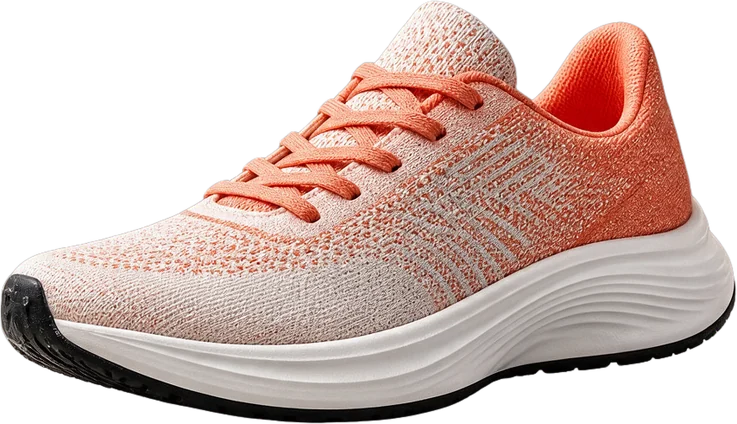
- 12Running shoe
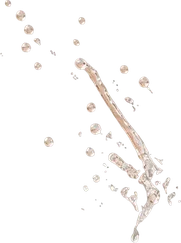
- 11Water splash
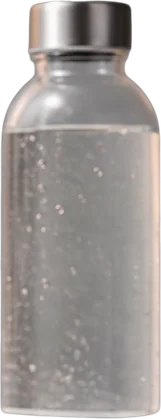
- 10Water bottle
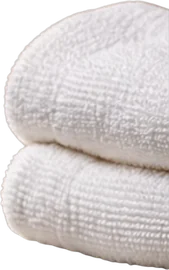
- 09Folded white towels
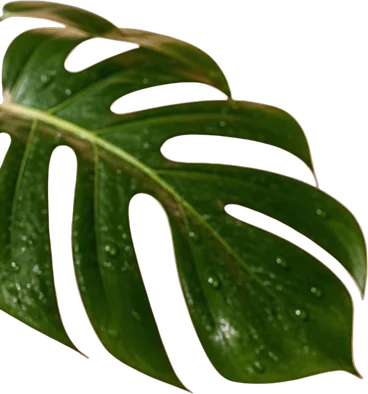
- 08Monstera leaf with water drops
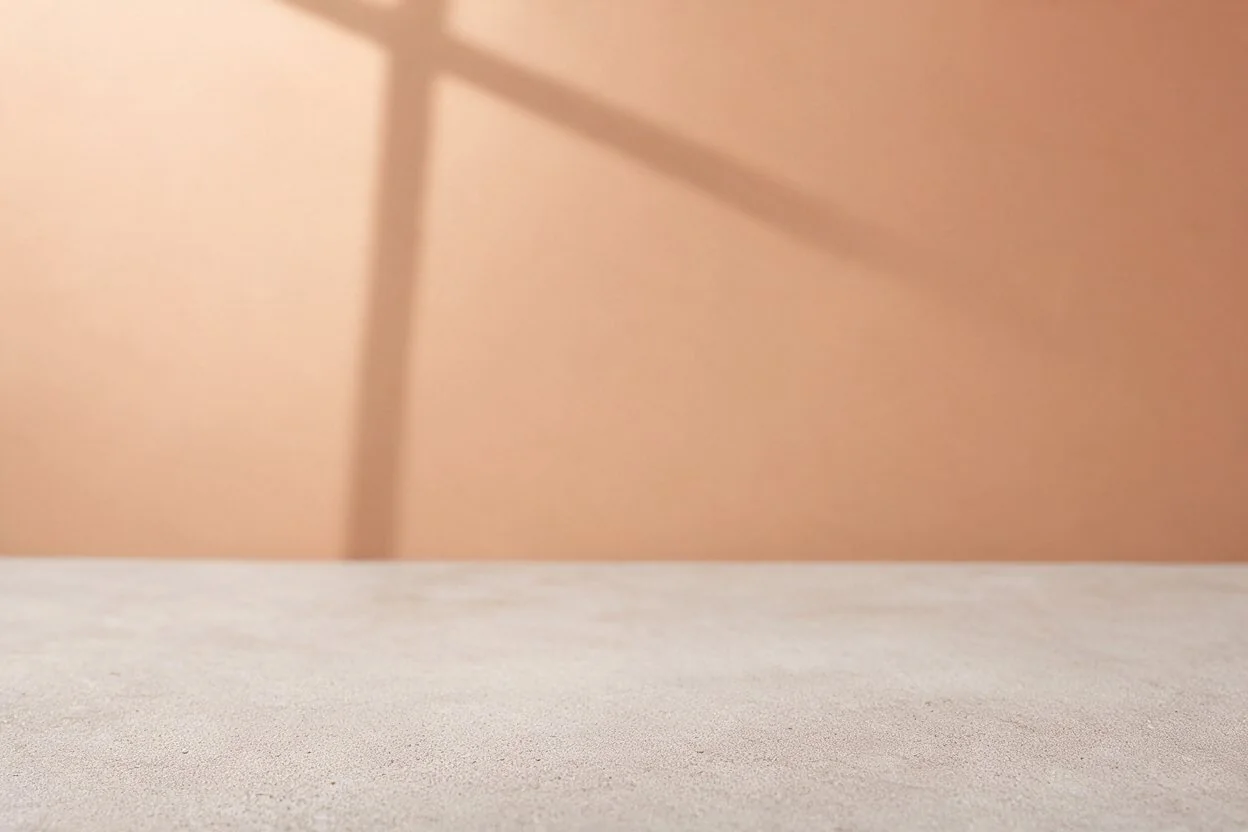
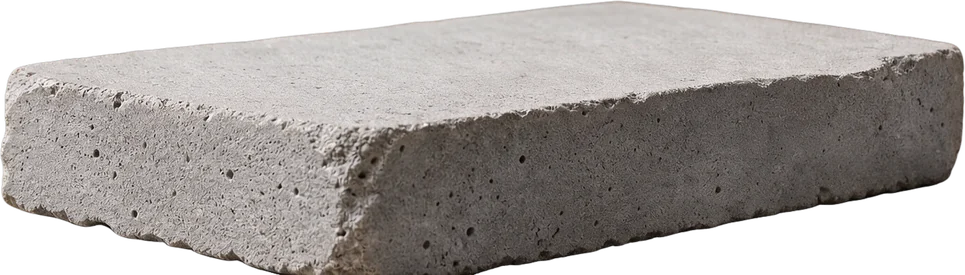
- 07Concrete display block
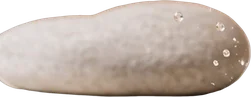
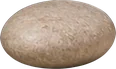
- 06Beige pebble, far right
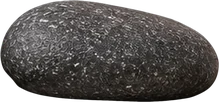
- 05Dark grey pebble, right
- 04Beige pebble, front right
- 03Light grey pebble, front left
- 02Dark brown pebble, left
- 01Light grey pebble, back left
- 00Background
Real result: Pro mode split this AI-generated product photo into 12 layers.
Try it
Take your image apart
Drop images hereOne or many. You can also paste or choose files.
PNG, JPEG or WebP · at least 512 × 512 pixels · up to 30 MB each · 20 at a time
How it works
Image to layers in three steps
- 01
Upload your images
Upload one image to layers or a whole batch: PNG, JPEG or WebP with at least 512 × 512 pixels. Posters, product shots, illustrations and photos all work.
- 02
Choose Fast or Pro
Optionally name the elements you want, such as “the bottle and the headline”. Fewer named elements means fewer layers to pay for.
- 03
Check and download
Switch layers on and off, compare with the original, then download PNGs, a ZIP or a PSD.
What you get
A file you can keep working on
An image to layers split returns every layer named, in stacking order, with its position on the canvas. The PSD and ZIP are built in your browser from those layers, so nothing else is uploaded.
- Layered PSDOne named layer per element. Opens in Photoshop, Photopea, Affinity Photo and GIMP.
- ZIPEvery layer from the image to layers split at full resolution, a recomposed preview, the PSD and a positions file.
- Single PNGsDownload any one layer with a transparent background.
running-shoe-example.zip
├── layers.psd
├── recomposed.png
├── layers.json  # names, order, boxes
└── layers/
    ├── 00-background.png
    ├── 01-light-grey-pebble-back-left.png
    ├── …
    ├── 10-water-bottle.png
    ├── 11-water-splash.png
    └── 12-running-shoe.png
Who it is for
Who turns an image into layers
- 01
Designers reworking old artwork
Use image to layers on a flattened poster or banner when the source file is lost, then move the headline or swap the background.
- 02
Shops and marketers
Pull the product, props and text off a campaign image to make new sizes and variants without starting over.
- 03
Motion and animation
Give each element its own layer for parallax, After Effects or Live2D-style rigs.
- 04
AI image makers
Generated images arrive flat. Run image to layers on them so you can fix one element without regenerating the whole picture.
How layer splitting works and where it falls shortTurning an image into a layered PSD
FAQ
What do I get back?
A rebuilt background image plus up to 16 transparent PNG layers, one per element the model finds (people, objects, text blocks, decorations). Each layer comes with a name and its position. You can download every layer as PNG, all of them as a ZIP, or a layered PSD that opens in Photoshop, Photopea, Affinity Photo or GIMP.
How do I turn an image into layers?
Upload one PNG, JPEG or WebP above, choose Fast or Pro, and press Split into layers. After about 30 seconds to 2 minutes you get a rebuilt background and one transparent layer per element. Check them in the preview, then download PNGs, a ZIP or a PSD.
Can a JPG have layers?
No. A JPG stores one flat picture and has no layers. LayersApart splits a JPG into several transparent PNG images and packs them into a PSD, which is the file that holds the layers.
Is image to layers the same as removing a background?
No. Background removal gives you one cutout. Layer splitting separates several elements at once and paints in what was hidden behind them, so you can move or delete an element and find a complete background underneath.
Will the layers stack back into exactly my original image?
Not pixel for pixel. The model completes hidden parts of each element and repaints the background behind them, so some details are redrawn. Pro keeps closer to the original than Fast. Use the Show original button to compare before you download.
How much does it cost?
You pay credits per returned image: the background counts as one, and each layer counts as one. The model decides how many layers it finds; naming the elements you want in the optional box keeps the count, the wait and the cost down. Current prices are on the pricing page.
Is text editable in the PSD?
Text comes back as its own raster layer, so you can move, hide or recolor it, but it is not a live text object. Retype it in your editor if you need to change the words.
What happens to my image?
Your image is sent to our server and to the AI model provider to be split. Results are kept for 23 hours so you can come back to them, then removed from LayersApart. LayersApart does not use your images to train AI models. Details are in the privacy policy.